HP Printer Test Page
Print our color test page below to check an HP printer’s output, then print HP’s own Print Quality Report from the printer menu to see what the printer itself reports. Find your model in the list for the exact steps from HP’s manuals: status report, quality report, cleaning and alignment.
By Online Printer Test PageLast updated
Printed? How did it look?
- Scale: 100% or Actual size, not Fit to page
- Headers and footers: off
- Paper in the tray matches US Letter
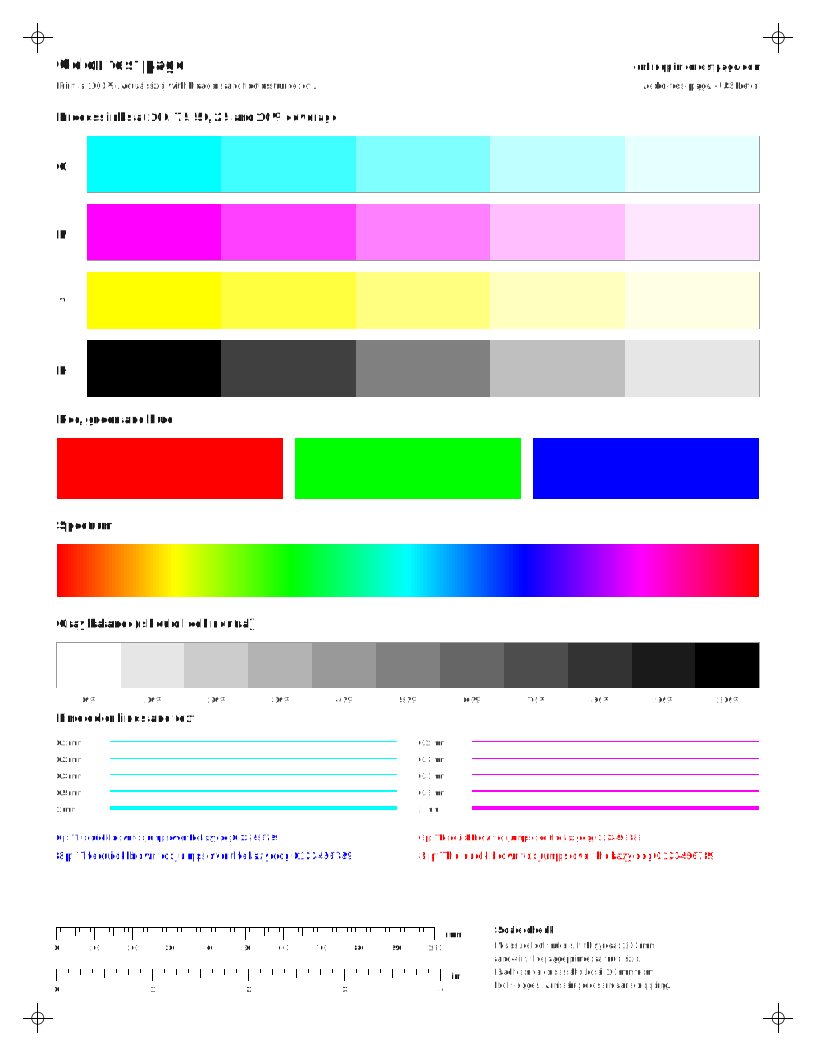
What to look for: color test page
- Each C, M, Y and K row should step evenly from solid to pale. A missing or streaky row points to that ink.
- The gray ramp should look neutral. A pink, green or blue cast means one color is printing weak or strong.
- The spectrum should flow without hard bands or gaps.
What to look for: black and white test page
- The solid black block should be even, with no white lines or streaks.
- You should be able to tell every gray step apart. Steps that merge at the dark end mean heavy ink or toner.
- Small text should be sharp, not fuzzy or doubled.
What to look for: cmyk color bars
- Compare the columns side by side. A column that is paler or streakier than the others is the ink to check.
- Each column should fade smoothly to white with no missing steps.
What to look for: alignment test page
- Vertical lines should be straight and single. Jagged or doubled lines mean the print head needs aligning.
- In the registration crosses, the colored lines should sit on top of each other.
- Diagonals and the circle should be smooth, not stepped.
What to look for: laser uniformity page
- Vertical light streaks in every field usually mean low toner or a dirty part along the paper path.
- Dark lines or specks that repeat down the page come from a roller. Measure the gap on the repeat-defect page.
Find your HP model
Steps are summarized from each maker’s own manuals and support pages, with a link to the source and the date we last checked it. If your model is missing, the closest family usually uses the same menus, but confirm in your manual.
14 model families
HP Smart Tank (button control panel: 5000/5100, 660-670, 710-720, 750 series)Smart Tank 5000, Smart Tank 5100 series, Smart Tank 660-670 series, Smart Tank 710-720 series, Smart Tank 750 seriesInkjet
Print a test or status page
- Load plain paper in the input tray.
- Wi-Fi models: press and hold the Information button for 5 seconds until the control panel buttons light up (support mode).
- Press the Resume button to print the Printer Status Report.
- USB-only models (Smart Tank 5000 guide): press and hold the Resume button for 3 seconds until the buttons light up, then press Resume.
Source: HP Smart Tank 5000 (HP Smart Tank 5100 series) User Guide - Print reports from the printer control panel (kaas.hpcloud.hp.com). Last checked .
Print quality report
- Load Letter or A4 unused plain white paper.
- Wi-Fi models: press and hold the Information button for 5 seconds to enter support mode.
- Press and hold the Color Copy button for 3 seconds to print the Print Quality Diagnostic Report.
- USB-only models: hold Resume for 3 seconds until the buttons light up, then hold Cancel for 3 seconds.
- Windows alternative: HP printer software > Print & Scan > Maintain Your Printer > Device Services tab > print the diagnostics page.
Source: HP Smart Tank 5000 (HP Smart Tank 5100 series) User Guide - Print reports from the printer control panel / Fix print quality issues (kaas.hpcloud.hp.com). Last checked .
Cleaning
- Clean only if the diagnostics page shows streaks or missing parts of the color or black boxes, because cleaning uses ink.
- EWS (Wi-Fi models): open the Embedded Web Server and click the Tools tab.
- In the left menu, click Utilities > Print Quality Toolbox.
- Click the button next to the clean printheads option.
- Windows alternative: HP printer software > Print & Scan > Maintain Your Printer > Device Services tab > choose the clean option and follow the prompts.
Source: HP Smart Tank 5000 (HP Smart Tank 5100 series) User Guide - Align and clean printheads (kaas.hpcloud.hp.com). Last checked .
Alignment
- Align if straight lines look jagged or the diagnostics page recommends it.
- Load Letter or A4 unused plain white paper.
- EWS: Tools tab > Utilities > Print Quality Toolbox, then click the button next to the align printheads option.
- Windows alternative: HP printer software > Print & Scan > Maintain Your Printer > Device Services tab > choose the align option.
Source: HP Smart Tank 5000 (HP Smart Tank 5100 series) User Guide - Align and clean printheads (kaas.hpcloud.hp.com). Last checked .
Not listed here: nozzle check. We could not confirm these steps in an official source for this family, so check your printer’s manual.
Note: The Smart Tank 660-670 / 710-720 / 750 User Guide (https://kaas.hpcloud.hp.com/pdf-public/pdf_3331993_en-US-1.pdf) gives the same support-mode button steps and the same EWS Print Quality Toolbox path. It also adds that pressing the Information button once, without holding it, prints the printer information page. HP's guides only list Windows software for cleaning and alignment on these models; no control-panel button combination is documented for them.
HP Smart Tank (touchscreen: 7600, 790 series)Smart Tank 7600 series, Smart Tank 790 seriesInkjet
Print a test or status page
- On the Home screen, open Menu and scroll down to touch Tools.
- Touch Reports.
- Touch Status Reports, then select Printer Status Report.
Source: User Guide HP Smart Tank 7600 series - Print reports from the printer control panel (kaas.hpcloud.hp.com). Last checked .
Print quality report
- Load Letter or A4 unused plain white paper.
- In Menu, scroll down to touch Tools.
- Touch Troubleshooting, then touch Print Quality to print the Print Quality Diagnostic Report.
Source: User Guide HP Smart Tank 7600 series - Print reports from the printer control panel (kaas.hpcloud.hp.com). Last checked .
Cleaning
- Load Letter or A4 unused plain white paper.
- On the Home screen, touch Menu, then scroll down to touch Tools.
- Touch Troubleshooting > Print Quality, then select the clean printheads option.
- Clean only when needed; the cleaning prints one page and uses ink.
Source: User Guide HP Smart Tank 7600 series - To align or clean the printheads from the printer control panel (kaas.hpcloud.hp.com). Last checked .
Alignment
- Load Letter or A4 unused plain white paper.
- On the Home screen, touch Menu, then scroll down to touch Tools.
- Touch Troubleshooting > Print Quality, then select the align printheads option.
- EWS alternative: Tools tab > Utilities > Print Quality Toolbox > button next to the align option.
Source: User Guide HP Smart Tank 7600 series - To align or clean the printheads from the printer control panel (kaas.hpcloud.hp.com). Last checked .
Not listed here: nozzle check. We could not confirm these steps in an official source for this family, so check your printer’s manual.
Note: The Smart Tank 790 series User Guide (https://kaas.hpcloud.hp.com/pdf-public/pdf_3347590_en-US-1.pdf) has the same report and align/clean sections, with matching wording.
HP Smart Tank 500 seriesSmart Tank 500 series, Smart Tank 500Inkjet
Print quality report
- Load Letter or A4 unused plain white paper.
- Press the Color Copy button and the Resume button at the same time.
- Windows alternative: HP printer software > Print & Scan > Maintain Your Printer > Device Services tab > Print Quality Diagnostics Page.
- Mac alternative: Applications > HP > HP Utility > All Settings > Print Quality Diagnostics > Print.
Source: User Guide HP Smart Tank 500 series - Improve print quality (h10032.www1.hp.com). Last checked .
Cleaning
- Clean only if the diagnostics page shows streaks or missing parts of the color or black boxes.
- Windows: HP printer software > Print & Scan > Maintain Your Printer > Device Services tab > choose the clean option and follow the prompts.
- Mac: open HP Utility, select the printer, click Clean Printheads, then follow the prompts.
Source: User Guide HP Smart Tank 500 series - Clean printheads (h10032.www1.hp.com). Last checked .
Alignment
- Load Letter or A4 unused plain white paper.
- Windows: HP printer software > Print & Scan > Maintain Your Printer > Device Services tab > choose the align option.
- Mac: open HP Utility, select the printer, click Align, then click Align again and follow the prompts.
Source: User Guide HP Smart Tank 500 series - Align printheads (h10032.www1.hp.com). Last checked .
Not listed here: print a test or status page, nozzle check. We could not confirm these steps in an official source for this family, so check your printer’s manual.
Note: This guide has no steps for printing a status or test report. Other 5xx/6xx models (e.g. 515, 530, 580, 615) were not checked against their own guides.
HP DeskJet 2700 All-in-One seriesDeskJet 2700 All-in-One seriesInkjet
Print a test or status page
- Load plain paper.
- Press and hold the Cancel button for three seconds to print the Printer Status Report.
- For a shorter summary, press the Information button once to print the Printer Information Page.
Source: User Guide HP DeskJet 2700 All-in-One series - Print reports from control panel (h10032.www1.hp.com). Last checked .
Print quality report
- Load Letter or A4 unused plain white paper.
- Open the HP printer software (Windows), click Print & Scan, then Maintain Your Printer.
- On the Device Reports tab, click Print Diagnostic Information.
- Check the color blocks for white lines, fading or missing areas.
Source: User Guide HP DeskJet 2700 All-in-One series - Fix print quality issues (h10032.www1.hp.com). Last checked .
Cleaning
- Load Letter or A4 unused plain white paper.
- Open the HP printer software (Windows), click Print & Scan, then Maintain Your Printer.
- On the Device Services tab, click Clean Cartridges and follow the prompts.
- Don't clean unless you need to; it wastes ink and shortens cartridge life.
Source: User Guide HP DeskJet 2700 All-in-One series - Fix print quality issues (h10032.www1.hp.com). Last checked .
Alignment
- Load Letter or A4 unused plain white paper.
- Open the HP printer software (Windows), click Print & Scan, then Maintain Your Printer.
- On the Device Services tab, click Align Cartridges; an alignment page prints.
- Follow the on-screen instructions to finish.
Source: User Guide HP DeskJet 2700 All-in-One series - Fix print quality issues (h10032.www1.hp.com). Last checked .
Not listed here: nozzle check. We could not confirm these steps in an official source for this family, so check your printer’s manual.
Note: Only the DeskJet 2700 guide was checked. Other DeskJet / DeskJet Plus models (e.g. 4100, 2700e) may use different button combinations. The guide documents cleaning and alignment only through the Windows software.
HP ENVY 6000 All-in-One seriesENVY 6000 All-in-One seriesInkjet
Print a test or status page
- Load plain paper.
- Press and hold the Information button for at least 3 seconds until all control panel buttons light up.
- Press the Resume button and the Cancel button at the same time to print the Printer Status Report.
- For the Printer Information Page, just press the Information button once, without holding it.
Source: User Guide HP ENVY 6000 All-in-One series - Print reports from control panel (h10032.www1.hp.com). Last checked .
Print quality report
- EWS: click the Tools tab, click Print Quality Toolbox under Utilities, then click the Print Quality Report button.
- HP Smart app (Windows 10): in Printer settings, click Printer Reports > Print Quality Diagnostics > Print.
- Windows software alternative: Print & Scan > Maintain Your Printer > Device Reports tab > Print Diagnostic Information.
Source: User Guide HP ENVY 6000 All-in-One series - Print reports from control panel / Fix print quality issues (h10032.www1.hp.com). Last checked .
Cleaning
- Load Letter or A4 unused plain white paper.
- Open the HP printer software (Windows), click Print & Scan, then Maintain Your Printer.
- On the Device Services tab, click Clean Cartridges and follow the prompts.
Source: User Guide HP ENVY 6000 All-in-One series - Fix print quality issues (h10032.www1.hp.com). Last checked .
Alignment
- Load Letter or A4 unused plain white paper.
- Open the HP printer software (Windows), click Print & Scan, then Maintain Your Printer.
- On the Device Services tab, click Align Cartridges; an alignment page prints.
- Follow the on-screen instructions.
Source: User Guide HP ENVY 6000 All-in-One series - Fix print quality issues (h10032.www1.hp.com). Last checked .
Not listed here: nozzle check. We could not confirm these steps in an official source for this family, so check your printer’s manual.
Note: The control panel has no button for the Print Quality Report; the guide only documents the EWS and HP Smart paths. 6000e (HP+) models have a separate guide that was not checked.
HP OfficeJet Pro 8020 / 9010 / 9020 seriesOfficeJet Pro 8020 series, OfficeJet Pro 9010 series, OfficeJet Pro 9020 seriesInkjet
Print a test or status page
- Swipe down the tab at the top of the touchscreen to open the Dashboard, then touch Setup.
- Touch Reports.
- Select Printer Status Report (other options include Network Configuration Page and Print Quality Report).
Source: HP OfficeJet Pro 9010 series User Guide - Understand printer reports (h10032.www1.hp.com). Last checked .
Print quality report
- Load Letter, A4, or Legal unused plain white paper.
- Swipe down to open the Dashboard and touch Setup.
- Touch Reports > Print Quality Report.
- Look at the blue, magenta, yellow and black boxes for streaks or areas with no ink.
- Windows alternative: HP printer software > Print, Scan, & Fax > Maintain Your Printer > Device Reports tab > Print Diagnostic Information.
Source: HP OfficeJet Pro 9010 series User Guide - Fix print quality issues (h10032.www1.hp.com). Last checked .
Cleaning
- Load Letter, A4, or Legal unused plain white paper.
- Swipe down to open the Dashboard and touch Setup.
- Touch Printer Maintenance > Clean Printhead and follow the on-screen instructions.
- Clean only when needed; cleaning uses ink and takes a few minutes.
Source: HP OfficeJet Pro 9010 series User Guide - Fix print quality issues / Maintain the printhead and cartridges (h10032.www1.hp.com). Last checked .
Alignment
- Load Letter, A4, or Legal unused plain white paper; colored paper makes the alignment fail.
- Swipe down to open the Dashboard and touch Setup.
- Touch Printer Maintenance > Align Printhead and follow the on-screen instructions.
Source: HP OfficeJet Pro 9010 series User Guide - Fix print quality issues (h10032.www1.hp.com). Last checked .
Not listed here: nozzle check. We could not confirm these steps in an official source for this family, so check your printer’s manual.
Note: Same menu wording in the OfficeJet Pro 8020 series User Guide (https://h10032.www1.hp.com/ctg/Manual/c06291141.pdf) and the 9020 series User Guide (https://h10032.www1.hp.com/ctg/Manual/c06220010.pdf). The guide says clean or align can also be run from the HP printer software or the EWS. The 'e' (HP+) variants have separate guides that were not checked.
HP LaserJet M109-M112 seriesLaserJet M109a, LaserJet M110w, LaserJet M110we, LaserJet M111a, LaserJet M111w, LaserJet M112aLaser
Print a test or status page
- If the printer is asleep (Ready light dim), press the Resume/Cancel button to wake it.
- Press and hold the Resume/Cancel button until the Ready light starts blinking, then release to print the configuration page.
Source: HP LaserJet M109-M112, M109a-M112a series User Guide - Print reports from control panel (h10032.www1.hp.com). Last checked .
Cleaning
- Open the HP Embedded Web Server (EWS).
- Click the System tab, then click Service.
- In the Cartridge Cleaning Mode area, click Start.
Source: HP LaserJet M109-M112, M109a-M112a series User Guide - Print a cleaning page (h10032.www1.hp.com). Last checked .
Not listed here: print quality report, nozzle check, alignment. We could not confirm these steps in an official source for this family, so check your printer’s manual.
Note: This series has no front-panel menu. HP's 'Print a cleaning page' procedure starts Cartridge Cleaning Mode from the EWS.
HP LaserJet MFP M139-M142 seriesLaserJet MFP M139w, LaserJet MFP M140w, LaserJet MFP M141a, LaserJet MFP M141wLaser
Print a test or status page
- If the printer is asleep (Ready light dim), press the Cancel button to wake it.
- Press and hold the Start Copy/Resume button for 5 seconds, then release to print the configuration page.
Source: HP LaserJet MFP M139-M142 series User Guide - Print reports from control panel (h10032.www1.hp.com). Last checked .
Cleaning
- Open the HP Embedded Web Server (EWS).
- Click the System tab, then click Service.
- In the Cartridge Cleaning Mode area, click Start.
Source: HP LaserJet MFP M139-M142 series User Guide - Print a cleaning page (h10032.www1.hp.com). Last checked .
Not listed here: print quality report, nozzle check, alignment. We could not confirm these steps in an official source for this family, so check your printer’s manual.
HP LaserJet M207-M212 seriesLaserJet M207dw, LaserJet M208dw, LaserJet M209d, LaserJet M209dw, LaserJet M209dwe, LaserJet M211d, LaserJet M211dwLaser
Print a test or status page
- Wireless models: press and hold the Information button for 3 seconds until all buttons light up.
- Press the Resume button to print the Configuration Report.
- USB models: press and hold the Resume button for 3 seconds.
- For a quick summary, press the Information button once to print the Information Report.
Source: User Guide HP LaserJet M207-M212 series - Print printer reports (h10032.www1.hp.com). Last checked .
Cleaning
- Open the Embedded Web Server (EWS).
- On the System tab, click Service.
- In the Fuser Cleaning mode area, click Start to print the cleaning page.
- For dust on the cartridge (background, dark bands, repeating horizontal bands), go to the same Service page and click Start under Cartridge Cleaning Mode.
Source: User Guide HP LaserJet M207-M212 series - Print a cleaning page / Clean the cartridge (h10032.www1.hp.com). Last checked .
Not listed here: print quality report, nozzle check, alignment. We could not confirm these steps in an official source for this family, so check your printer’s manual.
HP LaserJet MFP M232-M237 seriesLaserJet MFP M232dw, LaserJet MFP M233dw, LaserJet MFP M233sdw, LaserJet MFP M234dw, LaserJet MFP M234dwe, LaserJet MFP M234sdn, LaserJet MFP M234sdw, LaserJet MFP M234sdweLaser
Print a test or status page
- Wireless models: press and hold the Information button for 3 seconds until all buttons light up.
- Press the Resume button to print the Configuration Report.
- USB models: press and hold the Resume button for 3 seconds.
- For a quick summary, press the Information button once to print the Information Report.
Source: User Guide HP LaserJet MFP M232-M237 series - Print printer reports (h10032.www1.hp.com). Last checked .
Cleaning
- Open the Embedded Web Server (EWS).
- On the System tab, click Service.
- In the Fuser Cleaning mode area, click Start to print the cleaning page.
- For a dusty cartridge, go to the same Service page and click Start under Cartridge Cleaning Mode.
Source: User Guide HP LaserJet MFP M232-M237 series - Print a cleaning page / Clean the cartridge (h10032.www1.hp.com). Last checked .
Not listed here: print quality report, nozzle check, alignment. We could not confirm these steps in an official source for this family, so check your printer’s manual.
HP LaserJet Pro M304-M305, M404-M405LaserJet Pro M404, LaserJet Pro M405, LaserJet Pro M404d, LaserJet Pro M405d, LaserJet Pro M304, LaserJet Pro M305Laser
Print a test or status page
- Press OK to show the Home screen.
- Use the arrow buttons to go to Setup, then press OK.
- Open Reports > Printer Configuration Report.
- Alternative: Setup > Reports > Supplies Status Page shows toner life and part numbers.
Source: HP LaserJet Pro M304-M305, M404-M405 User Guide - Clear paper jams / Check toner-cartridge status (h10032.www1.hp.com). Last checked .
Cleaning
- Press OK to show the Home screen.
- Using the arrow and OK buttons, open Setup > Printer Maintenance > Print Quality Tools > Cleaning Page.
- When asked, load plain Letter or A4 paper and press OK.
- Wait for the cleaning to finish, then throw the printed page away.
Source: HP LaserJet Pro M304-M305, M404-M405 User Guide - Print a cleaning page (h10032.www1.hp.com). Last checked .
Not listed here: print quality report, nozzle check, alignment. We could not confirm these steps in an official source for this family, so check your printer’s manual.
Note: The user guide has no Print Quality Report steps for this mono series, and its repair manual (kaas pdf_11503727) has no repeating-defect distance table.
HP Color LaserJet Pro M255-M256 / MFP M282-M285Color LaserJet Pro M255, Color LaserJet Pro M256, Color LaserJet Pro MFP M282, Color LaserJet Pro MFP M283, Color LaserJet Pro MFP M284, Color LaserJet Pro MFP M285Laser
Print a test or status page
- 2-line control panels: press OK. Touchscreen panels: swipe to the Setup menu and touch the Setup icon.
- Open the Reports menu.
- Select Configuration Report.
Source: HP Color LaserJet Pro M255-M256 User Guide - Clear paper jams (print a configuration page) (h10032.www1.hp.com). Last checked .
Print quality report
- 2-line control panels: press OK. Touchscreen panels: swipe to the Setup menu and touch the Setup icon.
- Select the Reports menu.
- Select Print Quality Page.
- The page has five color bands in four groups (yellow, cyan, black, magenta). Streaks or dots in one group point to that toner cartridge.
Source: HP Color LaserJet Pro M255-M256 User Guide - Print and interpret the print quality page (h10032.www1.hp.com). Last checked .
Cleaning
- 2-line control panels: press OK. Touchscreen panels: swipe to the Setup menu and touch the Setup icon.
- Open Service > Cleaning Page.
- When asked, load plain Letter or A4 paper and select OK.
- Wait for the cleaning to finish, then throw the printed page away.
Source: HP Color LaserJet Pro M255-M256 User Guide - Print a cleaning page (h10032.www1.hp.com). Last checked .
Alignment
- 2-line control panels: press OK. Touchscreen panels: swipe to the Setup menu and touch the Setup icon.
- Select System Setup > Print Quality > Color Calibration > Calibrate Now.
- 2-line panels: select OK to start.
- Leave the printer on until the Calibrating message clears (a few minutes), then print again.
Source: HP Color LaserJet Pro M255-M256 User Guide - Calibrate the printer to align the colors (h10032.www1.hp.com). Last checked .
Not listed here: nozzle check. We could not confirm these steps in an official source for this family, so check your printer’s manual.
Note: Laser 'alignment' here means HP's Color Calibration, which HP describes as aligning the colors. The MFP M282-M285 User Guide (https://h10032.www1.hp.com/ctg/Manual/c06431905.pdf) uses the same menus: Setup > Reports > Print Quality Page / Configuration Report; Setup > Service > Cleaning Page; Setup > System Setup > Print Quality > Color Calibration > Calibrate Now.
HP Color LaserJet Pro M454 / MFP M479Color LaserJet Pro M454dn, Color LaserJet Pro M454dw, Color LaserJet Pro M454nw, Color LaserJet Pro MFP M479fdw, Color LaserJet Pro MFP M479fdn, Color LaserJet Pro MFP M479dw, Color LaserJet Pro MFP M479fnwLaser
Print a test or status page
- Touchscreen: swipe the top tab down to open the Dashboard and touch Setup. 2-line LCD: press OK, arrow to Setup, press OK.
- Open Reports > Printer Configuration Report.
Source: HP Color LaserJet Pro M454 User Guide - Clear paper jams (print a configuration page) (h10032.www1.hp.com). Last checked .
Print quality report
- Touchscreen: swipe the top tab down to open the Dashboard and touch Setup. 2-line LCD: press OK, arrow to Setup, press OK.
- Open Reports > Print Quality Report, then press or touch OK.
- Read the five color bands in four groups (yellow, cyan, black, magenta). Dots or streaks in one group mean replacing that cartridge. Dots in several groups mean printing a cleaning page. Streaks across several bands mean contacting HP.
Source: HP Color LaserJet Pro M454 User Guide - Print and interpret the print quality page (h10032.www1.hp.com). Last checked .
Cleaning
- Touchscreen: swipe the top tab down to open the Dashboard and touch Setup. 2-line LCD: press OK, arrow to Setup, press OK.
- Open Printer Maintenance > Print Quality Tools > Cleaning Page.
- When asked, load plain Letter or A4 paper and press or touch OK.
- Wait for the cleaning to finish, then throw the printed page away.
Source: HP Color LaserJet Pro M454 User Guide - Print a cleaning page (h10032.www1.hp.com). Last checked .
Alignment
- Touchscreen: swipe the top tab down to open the Dashboard and touch Setup. 2-line LCD: press OK, arrow to Setup, press OK.
- Open Printer Maintenance > Color Calibration (2-line LCD: press OK to start).
- Leave the printer on until the Calibrating message clears, then print again.
Source: HP Color LaserJet Pro M454 User Guide - Calibrate the printer to align the colors (h10032.www1.hp.com). Last checked .
Not listed here: nozzle check. We could not confirm these steps in an official source for this family, so check your printer’s manual.
Note: The MFP M479 User Guide (https://kaas.hpcloud.hp.com/pdf-public/pdf_375412_en-US-1.pdf) gives the same touchscreen paths: Dashboard > Setup > Reports > Print Quality Report / Printer Configuration Report; Printer Maintenance > Print Quality Tools > Cleaning Page; Printer Maintenance > Color Calibration.
HP LaserJet Tank 1020 / 150x / 250x seriesLaserJet Tank 1020, LaserJet Tank 1020w, LaserJet Tank 1502w, LaserJet Tank 1504w, LaserJet Tank 2502dw, LaserJet Tank 2504dw, LaserJet Tank 2506dwLaser
Print a test or status page
- Wireless models: press and hold the Information button for 5 seconds until all buttons light up.
- Press the Resume button to print the Configuration Report.
- USB models: press and hold the Resume button for 5 seconds.
- For a summary, press the Information button once to print the Information Report.
Source: HP LaserJet Tank 1020, 150x, 250x series User Guide - Print reports (kaas.hpcloud.hp.com). Last checked .
Cleaning
- Open the Embedded Web Server (EWS).
- On the System tab, click Service.
- In the Fuser Cleaning mode area, click Start.
Source: HP LaserJet Tank 1020, 150x, 250x series User Guide - Print a cleaning page (kaas.hpcloud.hp.com). Last checked .
Not listed here: print quality report, nozzle check, alignment. We could not confirm these steps in an official source for this family, so check your printer’s manual.
Note: Neverstop models were not checked.
How do I print an HP printer status or configuration page?
HP printers print two kinds of built-in page. The Printer Status Report (or configuration page on LaserJets) lists settings, supply levels and errors. It proves the printer itself works, which is useful when nothing prints from your computer. The Print Quality Report is the one to use when output looks wrong.
If you can print the status report but not documents, the problem is the connection, driver or app. Our guide on test page prints but documents don’t covers that.
How do I read the HP print quality report?
The report prints blocks of each color. HP’s guides tell you to look for streaks, white lines or areas with no ink in each block. If every block is even, cleaning is not needed. If one color has gaps, run the printhead cleaning and print the report again.
LaserJet models in our list have a configuration page and a cleaning page but no separate quality report, except the color LaserJet Pro models.
Repeating marks on HP lasers
- 27 mm: Print engine. LaserJet Professional M1130/M1210 MFP series only.
- 29 mm: Print engine. LaserJet Professional M1130/M1210 MFP series only.
- 39 mm: Print engine. LaserJet Professional M1130/M1210 MFP series only.
- 56 mm: Fuser. LaserJet Professional M1130/M1210 MFP series only.
- 75 mm: Print cartridge. LaserJet Professional M1130/M1210 MFP series only.
Source: HP LaserJet Professional M1130/M1210 MFP Series User Guide - Repetitive defects ruler (Figure 12-1), checked Oct 12, 2026. Measure yours with the repeat-defect ruler.
How do I clean an HP printhead?
HP’s guides recommend cleaning only when the quality report shows a problem, because each cycle uses ink. Touchscreen models run it from Tools or Printer Maintenance. Several button-only models in our list are cleaned from the HP printer software, the HP Smart app or the Embedded Web Server instead of the printer buttons.
Use the cleaning-cycle advisor to keep count, and stop and rest the printer if two cleanings in a row make no difference.
How do I print an HP alignment page?
Alignment is part of the same maintenance menus. HP prints an alignment page and, on many of the models we checked, scans it to adjust the printhead automatically. On color LaserJet Pro models the equivalent is color calibration. Then print our alignment test page to confirm vertical lines are straight.
Sources and what we could not verify
Every procedure above links to the HP manual or support page it came from. We publish only steps we could read in an official source. See how we verify.
General HP sources (4)
- How to Fix Common HP Printer Problems (HP Tech Takes) (hp.com, checked Oct 12, 2026)
- How to Clean Printhead for Better Ink Efficiency (HP Tech Takes, Jan 31 2025) (hp.com, checked Oct 12, 2026)
- HP OfficeJet Pro 9010 series User Guide - 'Fix print quality issues' (h10032.www1.hp.com, checked Oct 12, 2026)
- HP Color LaserJet Pro M454 User Guide - 'Resolving print quality problems' (h10032.www1.hp.com, checked Oct 12, 2026)
Not yet verified (9)
- support.hp.com document pages (e.g. ish_6835815-6835927-16 Smart Tank 520/540 reports; ish_6730664-6731629-16 Smart Tank print quality; c06191659 OfficeJet Pro 9010/9020 print quality; ish_6189232-6189286-16 DeskJet 2600/2700/4100/4800 print quality; ish_2056394-2056383-16 LaserJet Enterprise M406/M407 image-quality troubleshooting) timed out or were bot-blocked on every fetch attempt, so their steps and numbers are NOT recorded. Search snippets were not used as evidence.
- Repeating-defect distance tables for current models (LaserJet Pro M404/M428, M110/M140, M209/M234, Color LaserJet Pro M255/M283/M454/M479, LaserJet Tank). The user guides have none, and the M304-M405/M329-M429 Repair Manual (kaas pdf_11503727) has none. The only fetched official table is for the older M1130/M1210. Model-specific tables exist on support.hp.com (e.g. Enterprise M406/M407; Color M55x/M57x) but could not be fetched.
- nozzleCheck: no HP user guide checked uses a 'nozzle check' procedure. HP uses the Print Quality Diagnostic page/report instead, so nozzleCheck is left out for every family.
- Print quality report for mono LaserJet (M110/M140/M209/M234/M404): no procedure in their user guides.
- Control-panel cleaning/alignment for button-only Smart Tank (5000/5100, 660-750, 500) and DeskJet 2700 / ENVY 6000: guides only document the EWS, HP Smart, Windows software or HP Utility (Mac) paths.
- HP Smart app cleaning path (Print Quality Tools > Clean Printhead): appears in support.hp.com docs per search results but not in any fetched guide, so it is not recorded.
- Test/status report for Smart Tank 500 series (c06424956 has no report table); Smart Tank 580/590/210/520/540 specific button combos (support doc not fetchable).
- DeskJet Plus / DeskJet 4100 / 2700e and ENVY 6000e / ENVY Inspire variants: separate guides not checked.
- LaserJet Neverstop: not checked.
Questions people ask
How do I print a test page on an HP printer?
Most HP printers print a Printer Status Report or configuration page from the control panel. On touchscreen models it is under Reports. On button-only models it is a button hold, for example holding Cancel for three seconds on the DeskJet 2700. Find your model in the list above for the exact steps.
Where is the HP print quality report?
Touchscreen models list it under Reports or Tools, Troubleshooting, Print Quality. Button-only Smart Tank models use a button combination. Many models can also print it from the HP printer software on Windows or the Embedded Web Server (EWS) in a browser.
Does HP have a nozzle check?
Not as a separate page on the models we checked. HP’s guides use the print quality report (also called the print quality diagnostic page) to show missing or streaky ink, and only recommend cleaning if that report shows a problem.
Why does my HP printer print a test page but not documents?
The test page proves the printer works. Documents also depend on the HP driver, the print queue and the app’s settings. Clear the queue, reinstall the HP software, and check the app’s print settings.